How to Set Up YouTube Subscriber Rewards in 10 Minutes
How to Set Up YouTube Subscriber Rewards in 10 Minutes
Here's the scenario: you want to give your subscribers something special. A PDF guide. A discount code. Access to your Discord.
But "setting up subscriber rewards" sounds complicated. You've been putting it off.
Good news: it takes about 10 minutes. Here's exactly how to do it.
Before You Start
You'll need three things:
- A YouTube channel (any size works)
- The reward you want to give (we'll cover options below)
- A ForSubs account (free to start)
That's it. No coding. No API keys. No WordPress plugins.
Step 1: Sign In With Your Creator Account
Go to ForSubs and click "Sign in." You'll use your Google account—the same one connected to your YouTube channel.
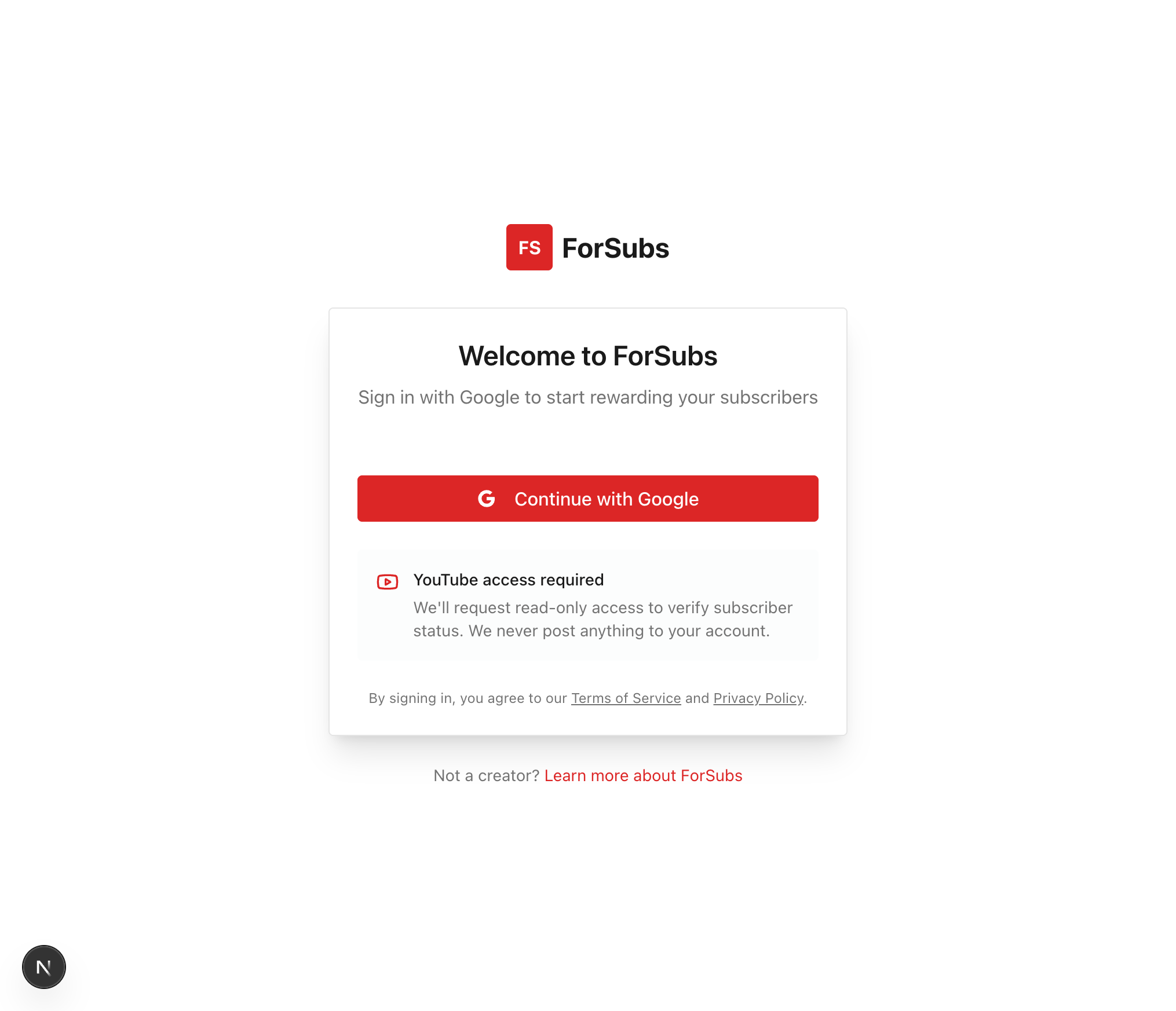
This does two things:
- Links your YouTube channel for verification
- Lets you manage your perk pages
You're not giving edit access to your channel. ForSubs only uses read-only permissions to verify subscriptions.
Step 2: Choose Your Perk Type
ForSubs has five perk templates. Pick the one that matches what you're giving away:

- Digital Download: Files your subscribers can download. PDFs, presets, templates, sample packs, wallpapers. Upload the file directly.
- Discount Code: A code for your merch store, course platform, or affiliate products. Enter the code and optionally set usage limits.
- Hidden Link: A secret URL revealed after verification. Perfect for unlisted YouTube videos, private pages, or Google Drive folders.
- Private Event: Access details for live events—Zoom links, stream passwords, virtual meetup info. Show it only to verified subscribers.
- Community Invite: Discord server links, Telegram group invites, or forum access. Keep your community subscriber-only.
For your first perk, pick the simplest option. A PDF guide or discount code works great.
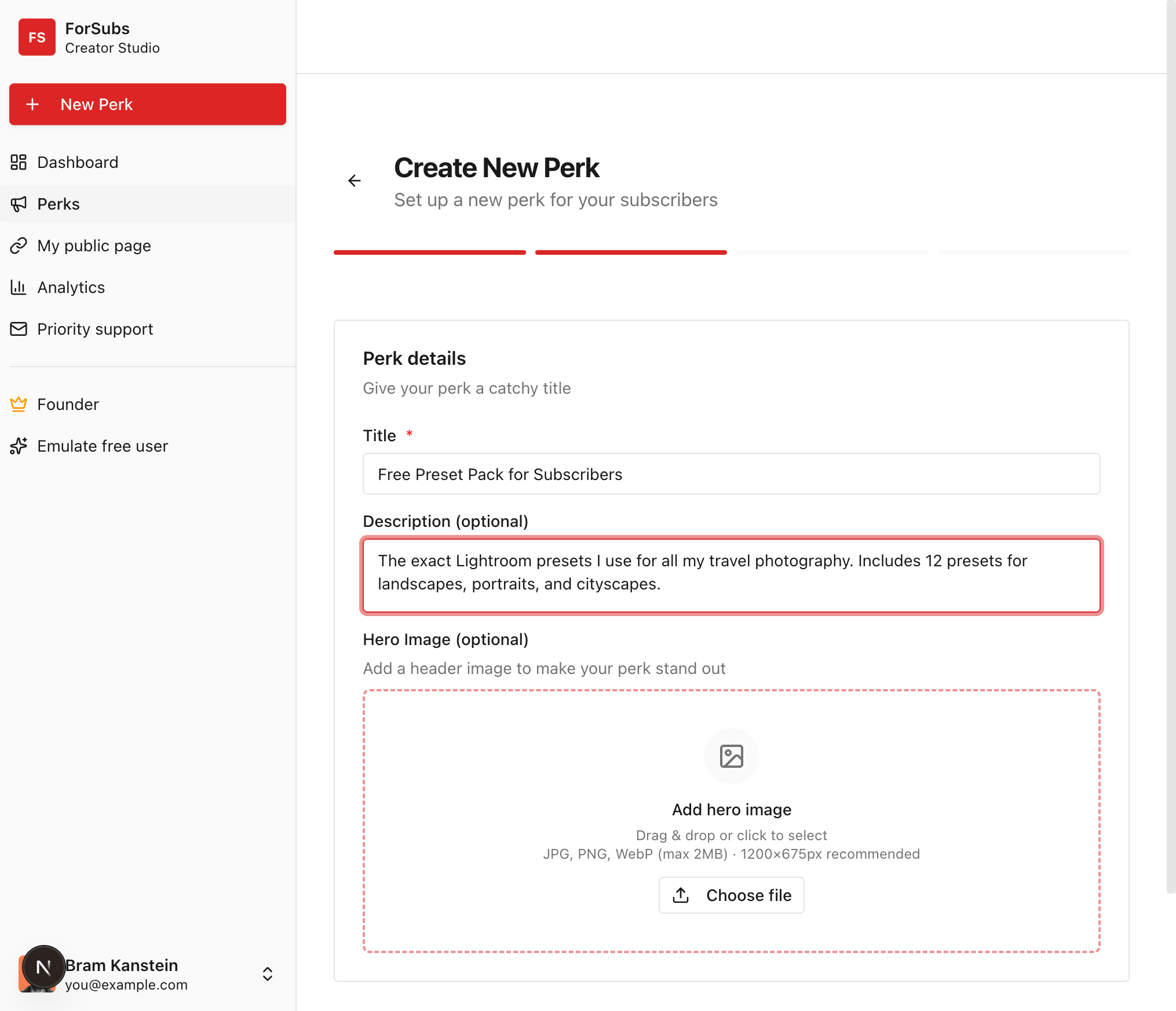
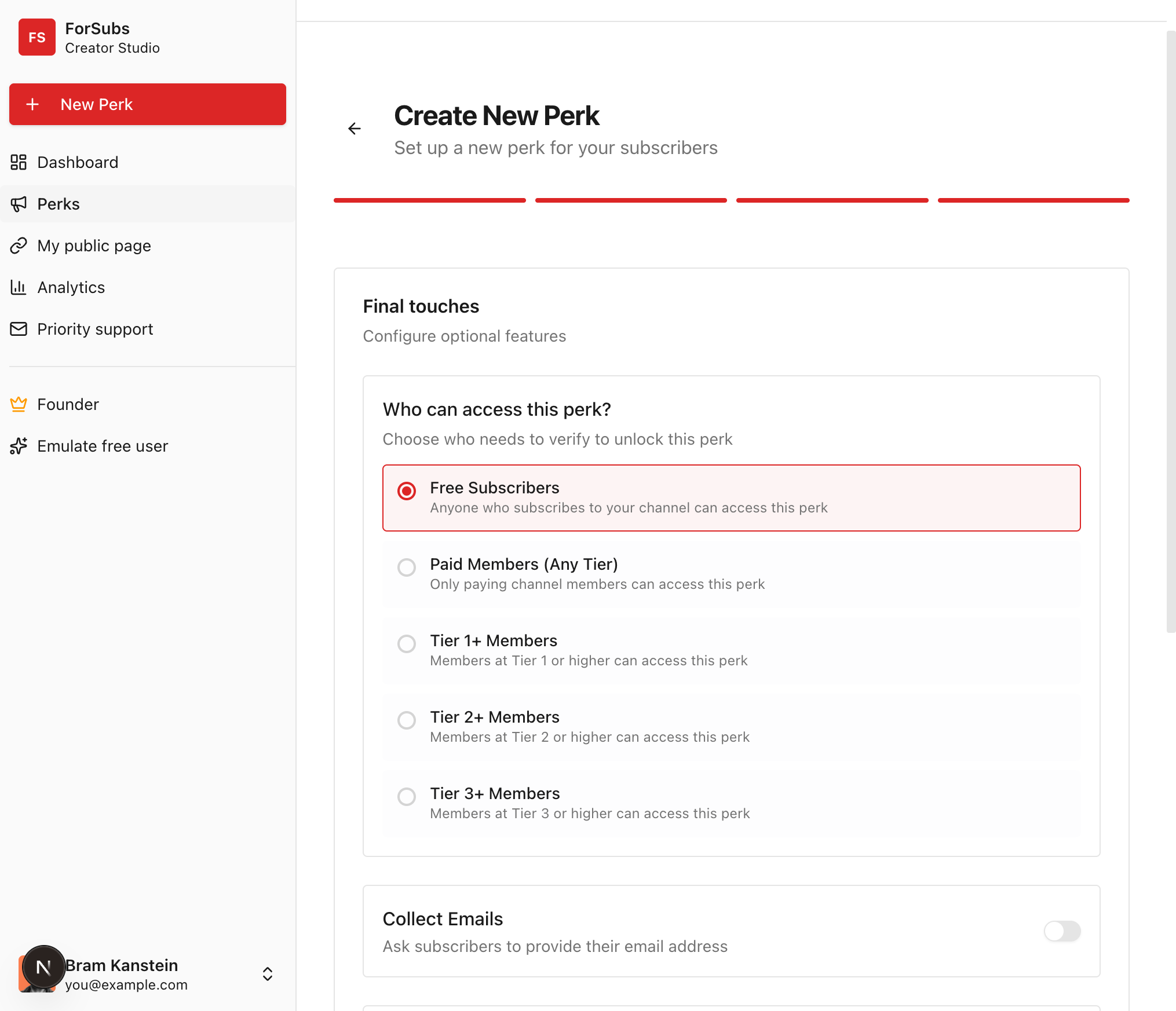
Step 3: Fill In the Details
Every perk needs:
- Title: "Free Preset Pack for Subscribers" or "20% Off Merch Code"
- Description: A few sentences about what they're getting
- The actual content: Upload the file, enter the code, or paste the link
Optional settings:
- Require email: Ask for their email before unlocking. Useful for building a list, but adds friction.
- Scheduling: Set a start/end date if it's time-limited.
- Unlock cap: Limit how many people can claim it (Pro Plus plans only).
Keep your first perk simple. No email requirement, no time limits. Just verify → unlock.
Step 4: Customize Your Page (Optional)
Your perk page automatically uses your channel name and thumbnail. But you can customize:
- Colors to match your brand
- A custom banner image
- Your own tagline
These options expand with paid plans, but the free tier looks good out of the box.
Step 5: Publish and Share
Click publish. You get a link like: forsubs.com/yourchannel/preset-pack
Now share it:
- In your video description: "🎁 FREE PRESET PACK for subscribers: [link]"
- As a pinned comment: Pinned comments get high visibility. Add the link there.
- In the video itself: Mention it: "I made a free preset pack for subscribers—link in the description."
- On your community tab: Post it to your YouTube community for existing subscribers.
- Across social media: Works anywhere you have an audience.
What Happens When Someone Clicks
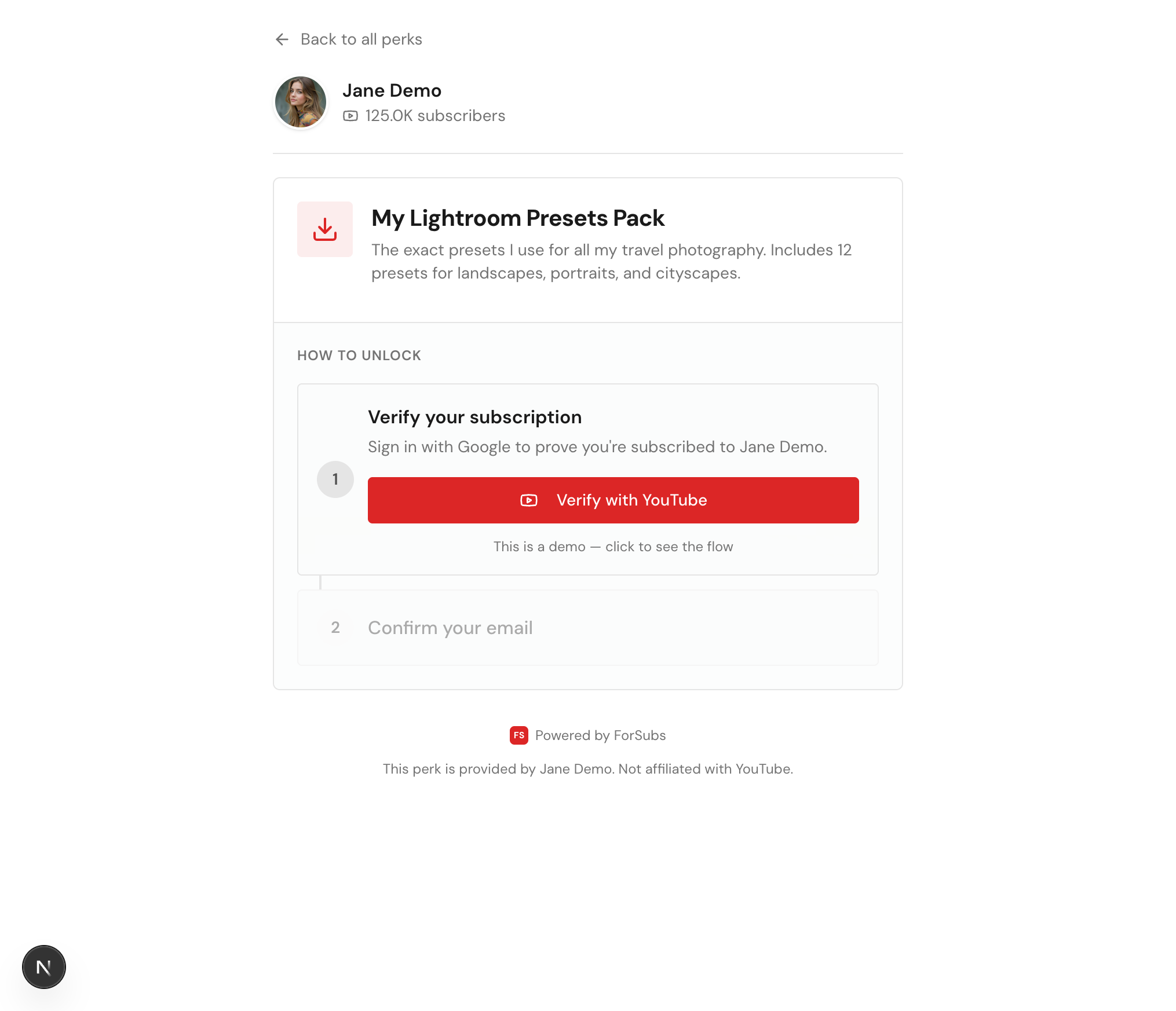
Here's the viewer experience:
- They click your link
- They see your perk page with the description
- They click "Verify with YouTube"
- Google OAuth confirms they're subscribed
- The perk unlocks immediately
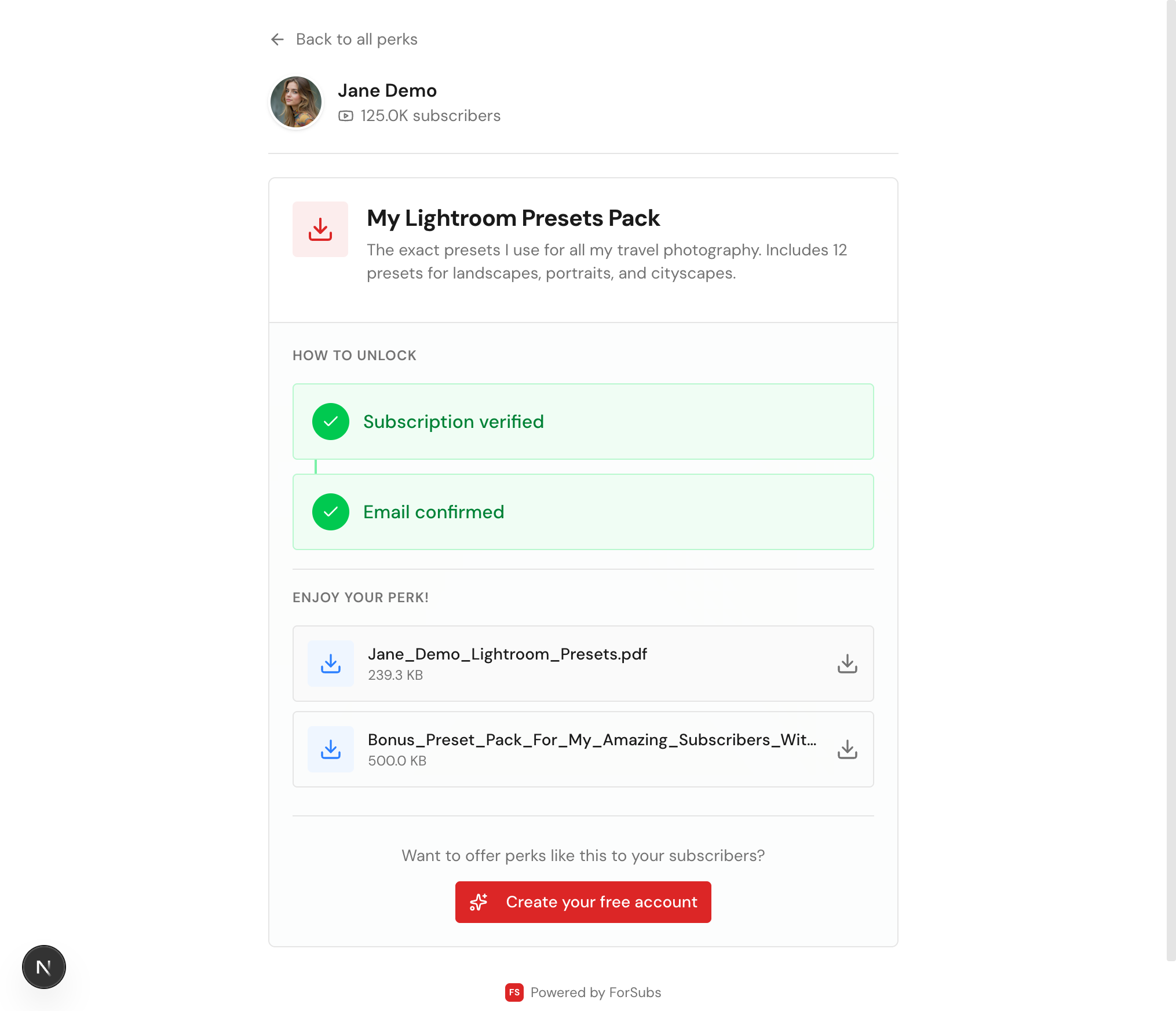
If they're not subscribed, they get a message explaining they need to subscribe first. Then they can try again.
The whole process takes about 10 seconds for the viewer.
The "Retroactive" Strategy
Here's a tip most creators miss: update your old video descriptions.
Your most-viewed video is probably still getting traffic. Add the perk link to that description. You'll turn passive viewers into verified subscribers without creating any new content.
Go through your top 10 videos and add the link. It takes 15 minutes and keeps paying dividends.
Troubleshooting
"Someone says they subscribed but can't unlock" YouTube's API sometimes has a brief delay. Ask them to wait 30 seconds and try again. If it persists, check if their subscriptions are set to private (shouldn't matter for OAuth, but worth checking).
"I want to limit how many people can claim this" That's the unlock cap feature—available on Pro Plus plans.
"Can I see who unlocked my perk?" You can see total unlocks, verification counts, and if you enabled email collection, you'll have those emails. Individual viewer identities aren't tracked for privacy.
Your 10-Minute Challenge
Here's the assignment:
- Sign in to ForSubs (2 minutes)
- Create a simple perk—a PDF or discount code (5 minutes)
- Add the link to your latest video description (2 minutes)
- Mention it in your next video (1 minute)
That's it. In 10 minutes, you've gone from "I should reward my subscribers" to actually doing it.
Stop planning. Start rewarding.